
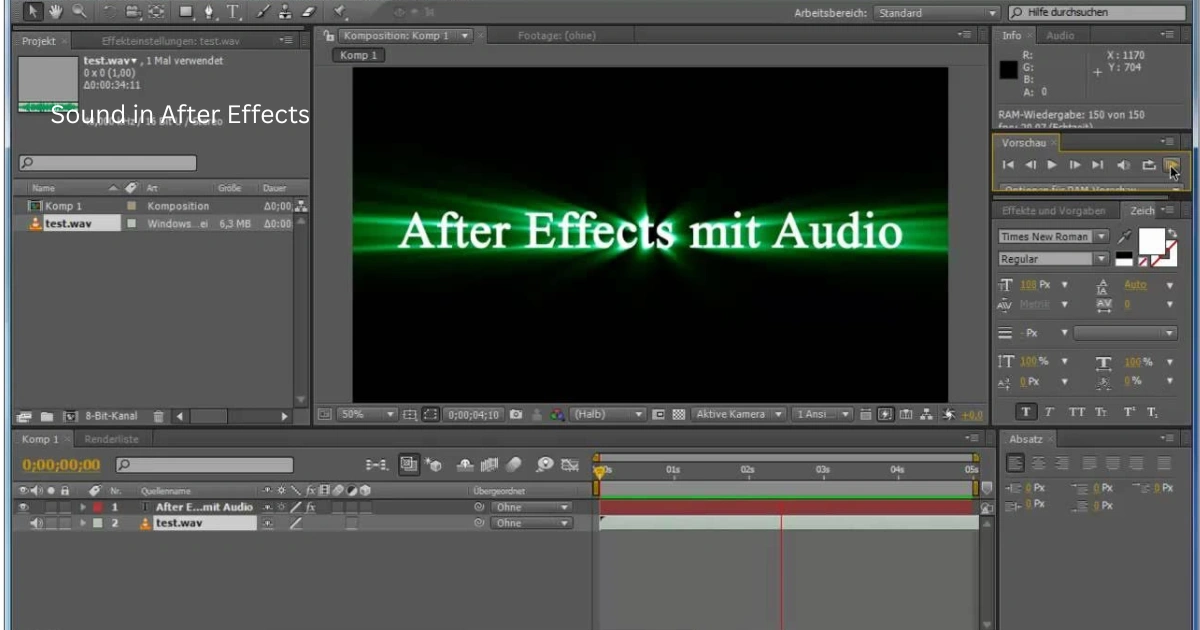
In the world of digital media, sound plays a crucial role in elevating the impact of visual storytelling. While After Effects is primarily known for its robust motion graphics and visual effects capabilities, its sound features provide essential support for creating cohesive, engaging multimedia projects. For creators, animators, and video editors, understanding the fundamentals of working with audio in After Effects is indispensable for producing professional-quality content. This article explores the essential principles, techniques, and best practices for integrating sound effectively within After Effects projects.
Understanding Audio in After Effects (How to fade Out Audio)
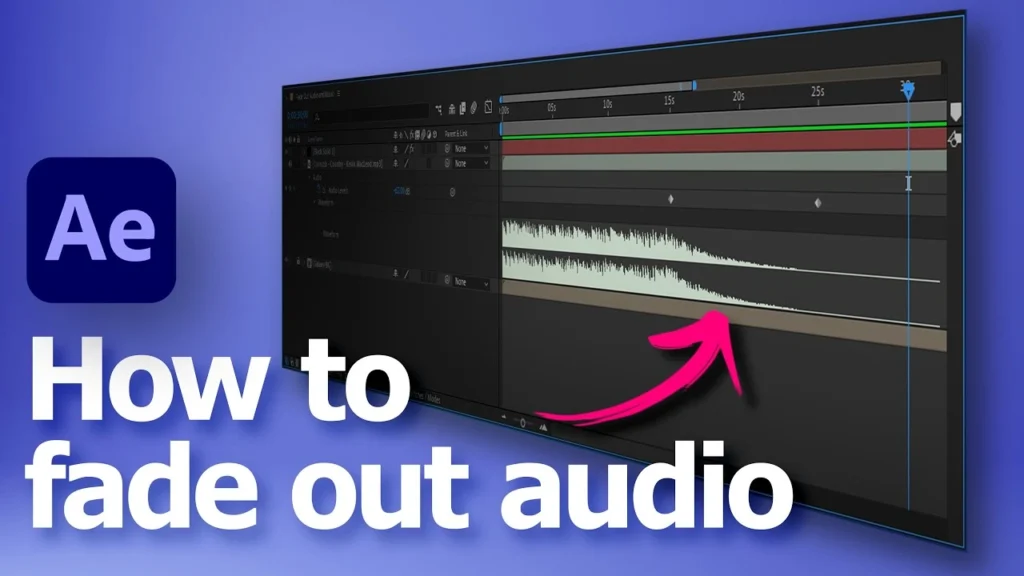
Before diving into practical applications, it is important to understand how After Effects handles audio. Unlike dedicated audio editing software, After Effects is not designed for advanced sound manipulation. Its primary function is to synchronize sound with visual elements, allowing editors to create a polished audiovisual experience. Audio in After Effects exists in two main forms: footage audio and composition audio.
- Footage Audio: This type of audio is embedded within a media file, such as an MP4 or WAV file. When imported into After Effects, the audio is linked to the video footage and can be manipulated alongside the visuals. Footage audio is ideal for projects where the audio is integral to the video file and requires minimal independent adjustment.
- Composition Audio: Composition audio refers to audio layers imported independently from visual media. These audio layers can be animated, edited, and synchronized to the timeline of a composition, providing greater flexibility for integrating sound effects, music tracks, and voiceovers.
Understanding these distinctions is the first step in mastering audio in After Effects, as it informs how one approaches synchronization, effects, and keyframe adjustments.
Importing Audio Files
Importing audio into After Effects is straightforward but requires attention to file types and quality. After Effects supports common audio formats such as WAV, AIFF, MP3, and AAC, each offering different advantages. WAV and AIFF files provide high-quality, uncompressed audio, which is ideal for professional projects. MP3 and AAC files are compressed formats, which reduce file size but may sacrifice some audio fidelity.
To import audio:
- Navigate to the File menu and select Import > File.
- Locate the desired audio file on your computer and click Open.
- The audio file appears in the Project Panel. Drag it into your composition timeline to begin synchronization with visual elements.
When importing multiple audio layers, organize files into separate folders within the Project Panel. Clear organization ensures that complex projects remain manageable and reduces the risk of accidentally muting or misplacing audio layers.
Understanding the Timeline and Audio Layers
Audio layers in After Effects are similar to video layers but have unique properties and controls. Key elements to understand include:
- Waveform Display: By toggling the waveform view (press the
LLkey twice in the timeline), you can visualize the audio signal. The waveform allows editors to identify peaks, quiet sections, and beat points, which is essential for precise synchronization with animation or visual effects. - Audio Levels: Each audio layer has an Audio Levels property, expressed in decibels (dB). Adjusting this property allows you to increase or decrease the volume of a track within the composition. Proper volume management is critical for balancing dialogue, music, and sound effects to ensure a professional mix.
- Layer Duration: Audio layers are bound by their duration within the timeline. Trimming or extending layers using the Alt + [ or Alt + ] shortcuts helps maintain alignment with the visual sequence and prevents unwanted silence or abrupt audio cutoffs.
Familiarity with these aspects provides a solid foundation for more advanced audio techniques in After Effects.
Synchronizing Sound to Animation
Synchronization is one of the most common tasks involving audio in After Effects. Properly synced audio enhances the realism, timing, and emotional impact of motion graphics. There are several methods for achieving synchronization:
- Manual Keyframing: One traditional approach is to manually adjust visual elements to match specific beats or sound events in the audio track. Using the waveform display, editors can identify key moments and set position, rotation, or opacity keyframes accordingly.
- Time Remapping: For video footage or animations that need to conform to audio rhythm, the Time Remap feature allows dynamic adjustment of timing. By keyframing the playback speed, visuals can perfectly align with music beats or sound effects.
- Markers: After Effects allows users to place markers directly on audio layers or the timeline. Markers serve as reference points for key visual events, simplifying the process of aligning animations with precise beats or cues.
Regardless of the method, meticulous attention to timing is essential. Even slight misalignment between sound and visual motion can disrupt the viewer’s experience, reducing the perceived professionalism of the final output.
Audio Effects in After Effects
Although After Effects is not primarily an audio editing platform, it includes several useful effects to enhance sound within compositions. Common effects include:
- Bass & Treble Adjustments: These effects allow subtle manipulation of low and high frequencies, shaping the tonal balance of an audio track to suit the visual context.
- Reverb: Adding reverb can simulate acoustic spaces and create a sense of depth or environment. This effect is particularly useful for motion graphics that include ambient or cinematic elements.
- Stereo Balance: Adjusting stereo balance positions audio between left and right channels, enhancing spatial perception and immersion.
- Pitch Shifting: Changing the pitch of an audio track can complement animation speed or create unique auditory effects, adding a creative dimension to the project.
Applying these effects requires careful listening and incremental adjustments, as over-processing can introduce distortion or reduce clarity.
Precomposing for Audio Management
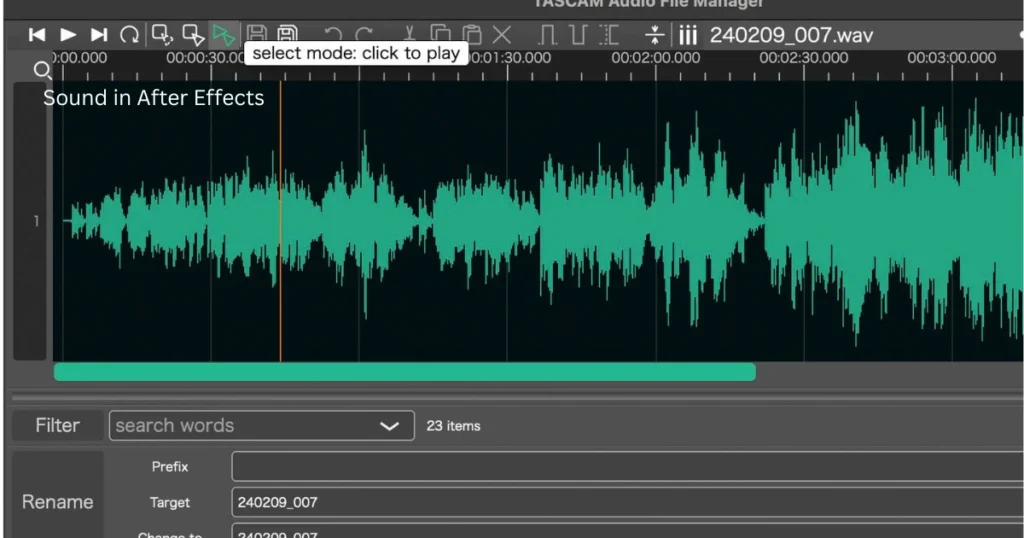
Complex projects often involve multiple audio layers. To streamline workflow and reduce clutter, precomposing is a highly effective strategy. Precomposing involves grouping multiple layers into a single nested composition. This approach provides several advantages:
- Simplified Timeline: Grouping audio layers reduces the number of individual tracks in the main composition, making it easier to focus on key visual and audio interactions.
- Centralized Adjustments: Effects applied to the precomposition affect all contained layers, allowing consistent processing and volume control across multiple tracks.
- Enhanced Synchronization: Precomposing allows for cohesive alignment between music, dialogue, and sound effects, ensuring that all audio elements remain synchronized with the visual sequence.
Precomposing is an essential organizational technique, particularly for commercial projects, music videos, or animated shorts that involve complex soundscapes.
Using Audio Preview and RAM Preview
Previewing audio is crucial for accurate editing. After Effects includes robust playback features to ensure that audio is correctly synchronized and balanced. The RAM Preview feature allows users to play back compositions with both video and audio in real time. Key considerations include:
- Audio Cache: Ensuring that RAM cache is sufficient to handle audio playback prevents skipped frames or lag during preview.
- Solo and Mute Options: Soloing individual audio layers isolates them for focused editing, while muting layers temporarily removes distractions during complex adjustments.
- Loop Playback: Looping sections of audio is valuable for fine-tuning synchronization or applying repetitive animation to match recurring beats.
A disciplined approach to previewing ensures that audio integration maintains the highest quality throughout the production process.
Exporting Audio with Composition
Exporting audio correctly is critical for maintaining quality in the final output. After Effects allows for several export workflows:
- Render Queue: Audio can be rendered as part of the composition using the Render Queue. Selecting the appropriate output module and ensuring that Audio Output is enabled preserves sound integrity.
- Dynamic Link with Premiere Pro: For projects requiring advanced audio mixing, After Effects compositions can be exported dynamically to Adobe Premiere Pro. This workflow allows users to take advantage of Premiere’s superior audio editing capabilities without losing synchronization.
- Separate Audio Export: Sometimes, exporting audio separately for mastering or post-processing is preferable. After Effects supports exporting audio as WAV or AIFF files, maintaining high fidelity for subsequent editing.
Choosing the right export method depends on project requirements, desired audio quality, and workflow preferences.
Best Practices for Working with Audio in After Effects
To maximize efficiency and maintain professional-quality output, consider these best practices:
- Use High-Quality Audio Files: Starting with uncompressed or minimally compressed audio ensures that sound remains clear and detailed throughout editing and export.
- Maintain Organized Project Files: Properly labeled layers, folders, and compositions prevent confusion and make complex projects manageable.
- Synchronize Early: Integrating sound early in the animation process helps guide timing decisions and ensures cohesive audiovisual storytelling.
- Use Markers and Guides: Markers provide reference points for syncing visuals to audio, improving accuracy and efficiency.
- Apply Subtle Audio Effects: Avoid overprocessing, as heavy effects can degrade clarity and distract from the overall presentation.
- Preview Frequently: Regularly use RAM preview or dynamic link previews to identify timing issues or imbalances before final rendering.
- Leverage Precomposing: Grouping multiple audio layers or effects within precompositions simplifies timeline management and ensures consistent processing.
- Maintain Consistent Levels: Balance audio levels across dialogue, music, and sound effects to prevent jarring volume fluctuations.
Adhering to these practices enhances workflow efficiency and contributes to the overall professionalism of the final composition.
Advanced Considerations
While the focus of this article is on the basics, understanding some advanced concepts can prepare users for more sophisticated projects:
- Expressions and Audio-Driven Animation: After Effects allows audio amplitude to drive visual properties using expressions. By linking properties like scale, position, or opacity to audio amplitude, animators can create dynamic, rhythmically synchronized effects.
- Third-Party Plugins: Numerous plugins expand After Effects’ audio capabilities. Tools such as Trapcode Sound Keys enable detailed mapping of audio frequencies to visual effects, providing greater creative flexibility.
- Integration with Sound Editing Software: For highly complex audio workflows, integrating After Effects with software like Adobe Audition or Pro Tools allows professional mixing and mastering while maintaining synchronization with animation.
Understanding these advanced techniques equips creators with the knowledge to handle professional projects that require intricate audio-visual interactions.
Conclusion
Sound is a powerful, indispensable element of multimedia storytelling. In After Effects, mastering the basics of audio integration, synchronization, and effect application ensures that animations and visual projects resonate with audiences on a deeper level. By understanding audio types, properly managing layers, using precompositions, and applying thoughtful effects, editors can achieve professional-quality results. Whether producing motion graphics, promotional videos, or cinematic animations, a well-executed audio strategy elevates the overall impact of the project. After Effects provides the essential tools for managing sound effectively, and with careful attention to workflow and best practices, creators can craft immersive audiovisual experiences that leave a lasting impression.